Docker containers are designed to be ephemeral. When you remove a container, everything inside it disappears unless that data lives outside the container’s writable layer. Docker volumes and bind mounts solve that problem. This guide explains when to use each, how to back up persistent data, and how to avoid the most common mistake that destroys homelab data during container updates.
Why Container Storage Is Different
Every container has a writable layer on top of its image. Changes made inside the container, such as database files or uploaded media, exist only in that layer. Removing the container removes the layer.
Persistent storage separates data from the container’s lifecycle. The data survives container recreation, image updates, and host reboots. Without persistent storage, any update that replaces the container also resets your data.
Bind Mounts
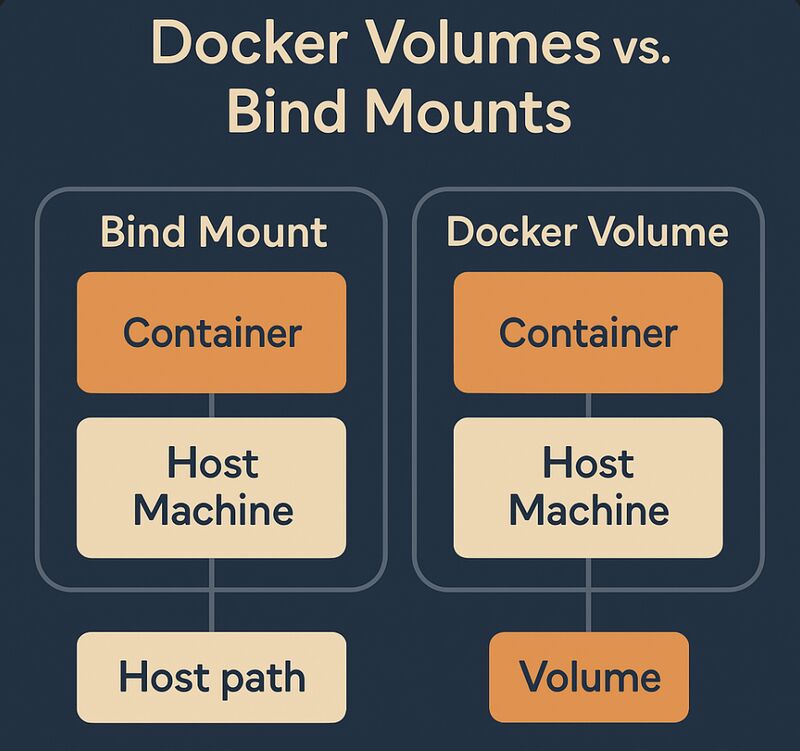
A bind mount maps a specific path on the host filesystem into the container. For example, mounting /mnt/media on the host to /app/media inside the container means media files saved by the container are stored directly on the host.
Bind mounts are the simplest option for homelab services that need access to existing host directories, such as media libraries, configuration files, or downloaded torrents. The host and container see the same files in real time.
Named Volumes
Named volumes are managed by Docker and stored under Docker’s storage directory on the host. You create a volume with docker volume create media and attach it to a container. Docker handles the filesystem details.
Named volumes are the recommended choice for database storage, application state, and any data where you want Docker to manage backups and performance. They work consistently across Linux, macOS, and Windows.
Docker Compose Storage
In Compose, bind mounts and named volumes are defined under volumes. A bind mount points to a host path. A named volume references a Docker-managed volume.
services:
  plex:
    image: plexinc/pms-docker:latest
    volumes:
      - /mnt/tv:/tv
      - plex-config:/config/Library/Application Support/Plex Media Server

volumes:
  plex-config:
In this example, /mnt/tv is a bind mount for media files already on the host. plex-config is a named volume for Plex metadata and settings.
Backup Strategies
Bind mounts are easy to back up because the data lives in plain directories on the host. Copy those directories with rsync or include them in your regular backup routine.
Named volumes require a different approach. Use docker run --rm -v volume-name:/source -v /backup:/backup alpine tar czf /backup/volume-name.tar.gz -C /source . to tar the contents of a named volume to a backup directory.
Automate backups with cron. Schedule a job that exports critical volumes to a backup directory and rotates old archives. Test restores quarterly.
Performance and Disk Usage
Named volumes use Docker’s storage drivers and are generally faster than bind mounts for small file operations. On Linux, bind mounts can be as fast as native filesystem access for large sequential reads, such as media streaming.
Monitor disk usage with docker system df. Volumes can grow silently if applications write logs or cache files indefinitely. Prune unused volumes with docker volume prune, but only after confirming they are not in use.
Common Mistakes
The most common mistake is storing persistent data in the container itself. If you start a database container without a volume, the database files live in the writable layer. Removing or updating the container destroys the database.
Another mistake is mixing bind mounts and named volumes for the same data. If a bind mount and a named volume target the same container path, the named volume takes precedence. This can create confusion when debugging missing files.
Finally, avoid storing volumes on the same disk as the operating system if that disk fails. Use a separate data disk or RAID array for homelab storage so a disk failure does not wipe both the OS and your persistent container data.
Final Thoughts
Docker volumes and bind mounts are not optional details. They are the difference between a disposable container and a reliable homelab service. Use bind mounts for host-managed files, named volumes for application data, and back up both regularly.
You may also want to read our guides on Docker Compose homelab stack, Ansible homelab automation, and self-hosted monitoring stack.