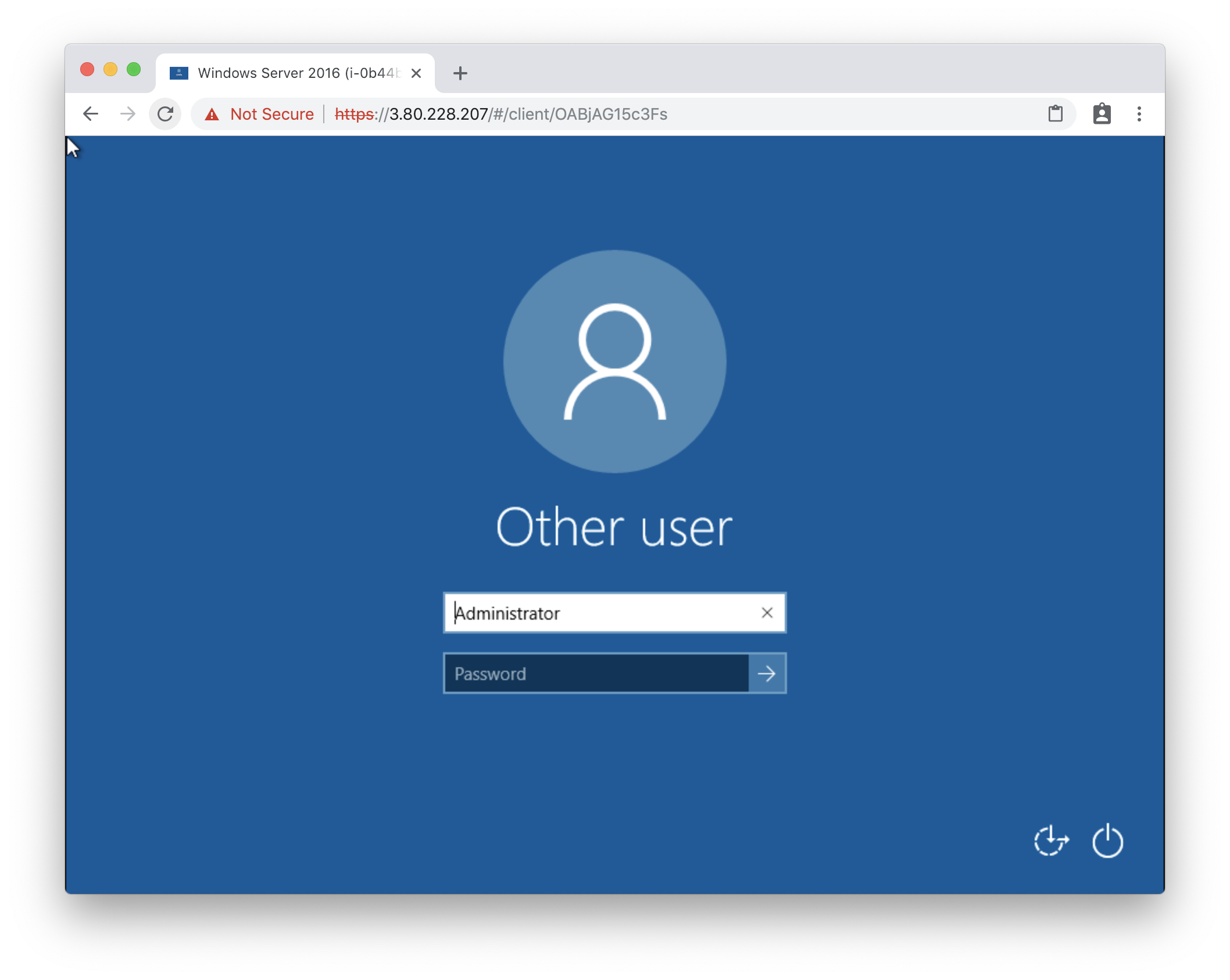
Accessing your homelab or office desktops from outside your home network usually means installing VPN clients, opening ports, or juggling multiple remote desktop tools. Apache Guacamole changes that by delivering remote desktops and terminals through a web browser without requiring client software. This guide covers installing Guacamole on Docker, connecting it to your existing VMs, and securing it for homelab use.
What Guacamole Does
Guacamole is an open-source remote desktop gateway. It supports RDP, VNC, SSH, and Telnet protocols and exposes them through a single HTML5 web application. Users connect with a browser; Guacamole handles the protocol translation on the server side.
For homelab users, this means you can access Proxmox VMs, Windows machines, Linux servers, and network gear from any device without installing proprietary remote desktop clients.
Architecture
A typical Guacamole setup has three components:
- Guacamole web application: serves the frontend and manages user sessions
- Guacamole server: translates between Guacamole protocol and the target protocol
- Database: stores user accounts, connections, and history
The easiest way to run all three is Docker Compose. A single configuration can include Guacamole, PostgreSQL, and an nginx reverse proxy.
Docker Compose Setup
Create a docker-compose.yml with three services: PostgreSQL, Guacamole server, and Guacamole client. The server and client containers must share a /config volume so they can exchange connection details.
Set the database connection properties in the Guacamole environment variables. Guacamole automatically creates its schema on first run if the database is empty. After startup, open the web UI on port 8080 and log in with the default administrator credentials.
Add Connections
In the Guacamole web interface, create connections for each machine you want to reach. Supported protocols include RDP for Windows, VNC for Linux desktops, and SSH for headless servers.
Fill in the hostname or IP address, port, username, and password for each target. Guacamole stores credentials encrypted in the database. For SSH, upload an RSA private key instead of using password authentication.
Secure with a Reverse Proxy
Exposing Guacamole directly to the internet is risky. Place it behind a reverse proxy with HTTPS. Nginx Proxy Manager or Caddy work well for this.
Create a Proxy Host pointing to the Guacamole container on port 8080. Enable Let’s Encrypt SSL. Add basic HTTP authentication in front of Guacamole for an extra layer of protection.
For homelab access, WireGuard VPN is a cleaner solution than public exposure. Access Guacamole only from inside the VPN, and you eliminate brute-force risk entirely.
File Transfer and Clipboard
Guacamole supports bidirectional file transfer and clipboard sharing for RDP and SSH. During a session, use the Guacamole sidebar to upload or download files. Clipboard sync works automatically across supported protocols.
File transfer performance depends on the underlying protocol. RDP drives are faster than Guacamole’s SFTP-style transfer for large files. For heavy file movement, use a dedicated syncing tool alongside Guacamole.
Scaling with Multiple Users
Guacamole supports multiple concurrent users and connections. Create separate user accounts with restricted connection permissions so family members or team members only see the servers they should access.
LDAP authentication is supported if you already maintain a directory service. Otherwise, Guacamole’s internal user database is sufficient for small teams.
Backup and Maintenance
Back up the Guacamole database regularly. The container state itself is disposable, but user accounts and connection configurations live in PostgreSQL. Dump the database with pg_dump and schedule it with cron.
Keep the Guacamole image updated. Check for new releases monthly, test the update in a non-production session, and then redeploy.
Final Thoughts
Apache Guacamole is one of the most practical additions to a homelab. It unifies remote access through a browser, removes client dependencies, and integrates cleanly with Docker and reverse proxies. If you already use WireGuard or Tailscale, Guacamole becomes a browser-based window into your entire infrastructure.
You may also want to read our guides on WireGuard VPN for homelab, Nginx Proxy Manager setup, and self-hosted monitoring stack to complete your remote access setup.